
How to switch Codex Desktop to Russian
On Windows, Codex runs inside the official ChatGPT desktop app. Russian is a built-in interface language.
- Install or update ChatGPT for Windows. Microsoft Store listing
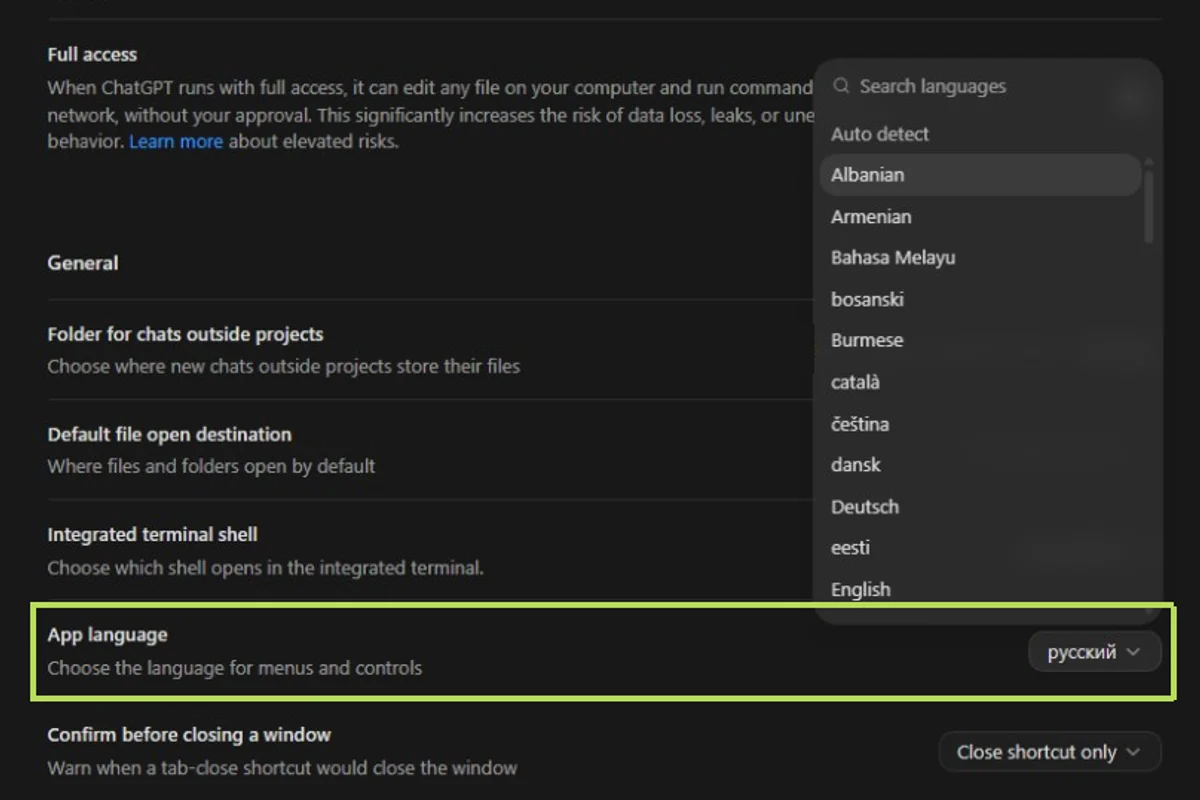
- Open the app and select Codex from the mode menu at the top of the sidebar. Press Ctrl+, or open Settings from the profile menu.
- Open General and find App language. Select «русский» in the language list.
If Codex stays in English
Fully quit ChatGPT, then open it again while connected to the internet. In some builds, the workspace falls back to English when the localization settings fail to load. Codex issue report
To check the saved preference, open %USERPROFILE%\.codex\config.toml. Update localeOverride in the existing [desktop] section. If CODEX_HOME is set, use the config.toml in that directory. This setting saves your preference and the app applies its translation resources when available.
[desktop]
localeOverride = "ru-RU"
How to add your Modelseed API key
Sign in to your Modelseed account and create a key for Codex. Open PowerShell as your Windows user, paste the commands below, and enter your key at the prompt. My API keys
$modelseedKey = [System.Net.NetworkCredential]::new('', (Read-Host 'Modelseed API key' -AsSecureString)).Password
[Environment]::SetEnvironmentVariable('MODELSEED_API_KEY', $modelseedKey, 'User')
Remove-Variable modelseedKey
Windows saves the key in the MODELSEED_API_KEY user environment variable. Fully quit the app, including its tray icon, then reopen it from the Start menu so Codex can read the key.
How to set the Base URL and provider in Codex
In Settings, open Model Providers or Model Providers & Gateways. Select Add, choose Gateway or custom provider, and enter these values.
- Name
Modelseed- Base URL
https://api.modelseed.dev/v1- Authentication
Environment variable- API key environment variable
MODELSEED_API_KEY
Enable Set as current provider and save. If Modelseed is already listed, choose Switch provider from its menu. Codex appends /responses to the Base URL. OpenAI’s gateway setup guide
If Model Providers is missing
Back up your user-level %USERPROFILE%\.codex\config.toml and merge in the settings below. Place model and model_provider before the first TOML table. Update the existing keys or Modelseed table if present. Choose an available model that supports the Responses API. GPT model catalog
model = "gpt-6-sol"
model_provider = "modelseed"

[model_providers.modelseed]
name = "Modelseed"
base_url = "https://api.modelseed.dev/v1"
wire_api = "responses"
env_key = "MODELSEED_API_KEY"
requires_openai_auth = false
Save the file and restart Codex.
How to check your connection
Start a new chat, select an available GPT model, and send a short prompt. A successful request appears in your Modelseed usage log. You can also list available models to check your key without generating a response. Check with GET /v1/models
- For a 401 error, verify the key and the MODELSEED_API_KEY variable name. If the app still cannot read the variable, sign out of Windows and sign back in.
- For a 404 error, check that the Base URL ends in /v1 and that the model ID matches the catalog.